

Appearance
Freshdesk Ticket Migrator
Freshdesk is a popular customer service SaaS platform. Fluent Support allows Freshdesk users to easily transfer their existing tickets directly into Fluent Support through an API connection. This article will guide you through the whole process.
Import Tickets From Freshdesk
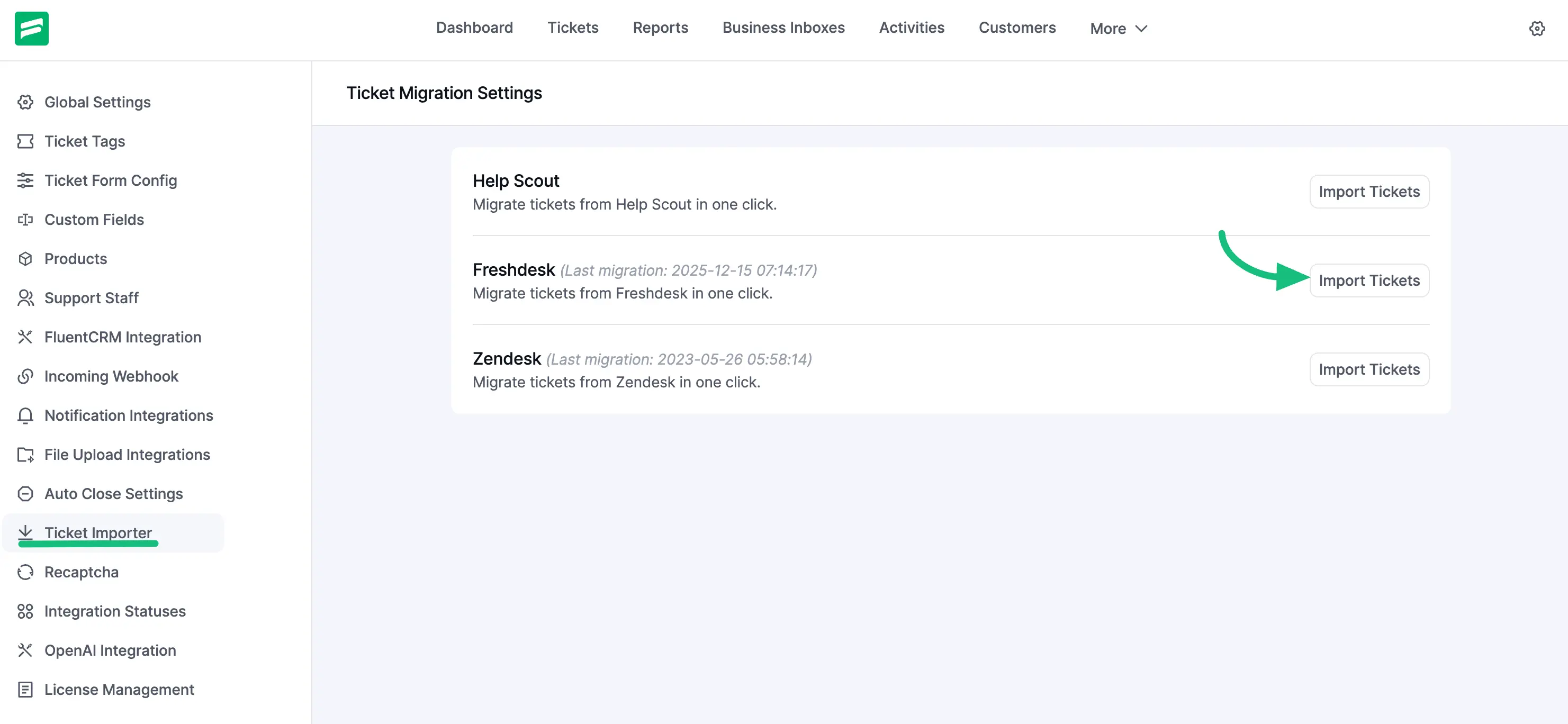
From the Fluent Support Dashboard, go to Settings and select Ticket Importer from the left sidebar. Find Freshdesk in the list of migration options and click the Import Tickets button.
Configuring the Import
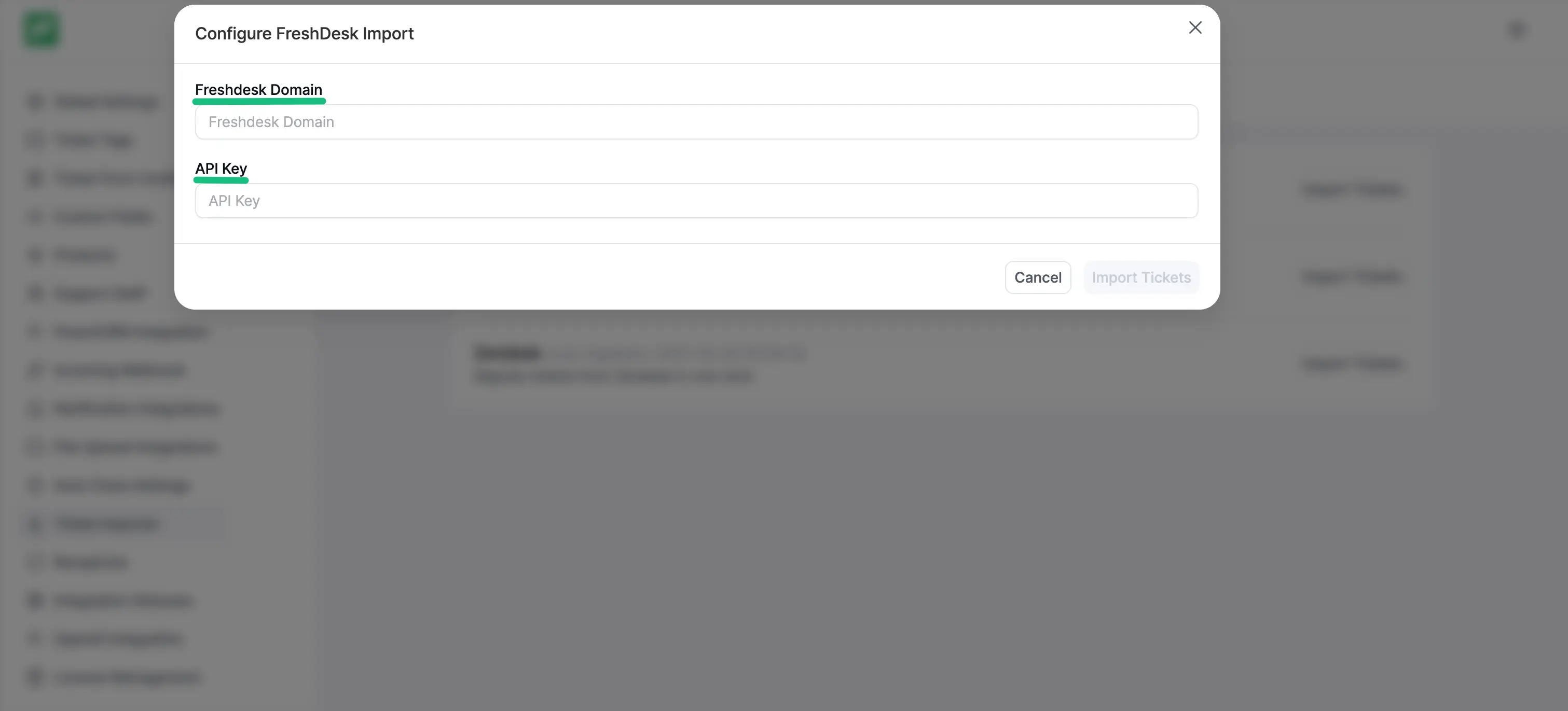
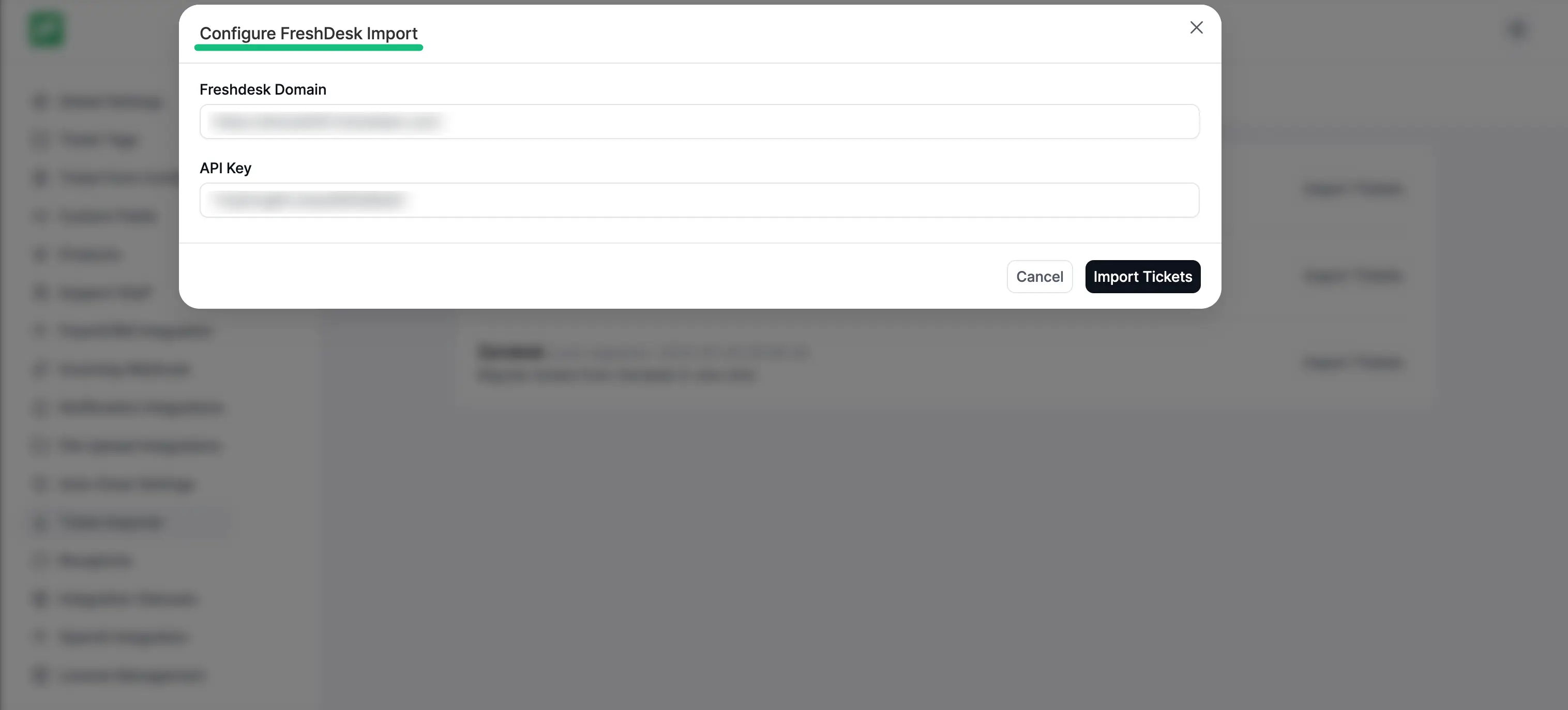
A popup page will appear asking for your Freshdesk Domain and API Key. To proceed, you need to retrieve these credentials from your Freshdesk account.
Get API Key and Domain
To get the Freshdesk Domain and API Key, go to your Freshdesk account.
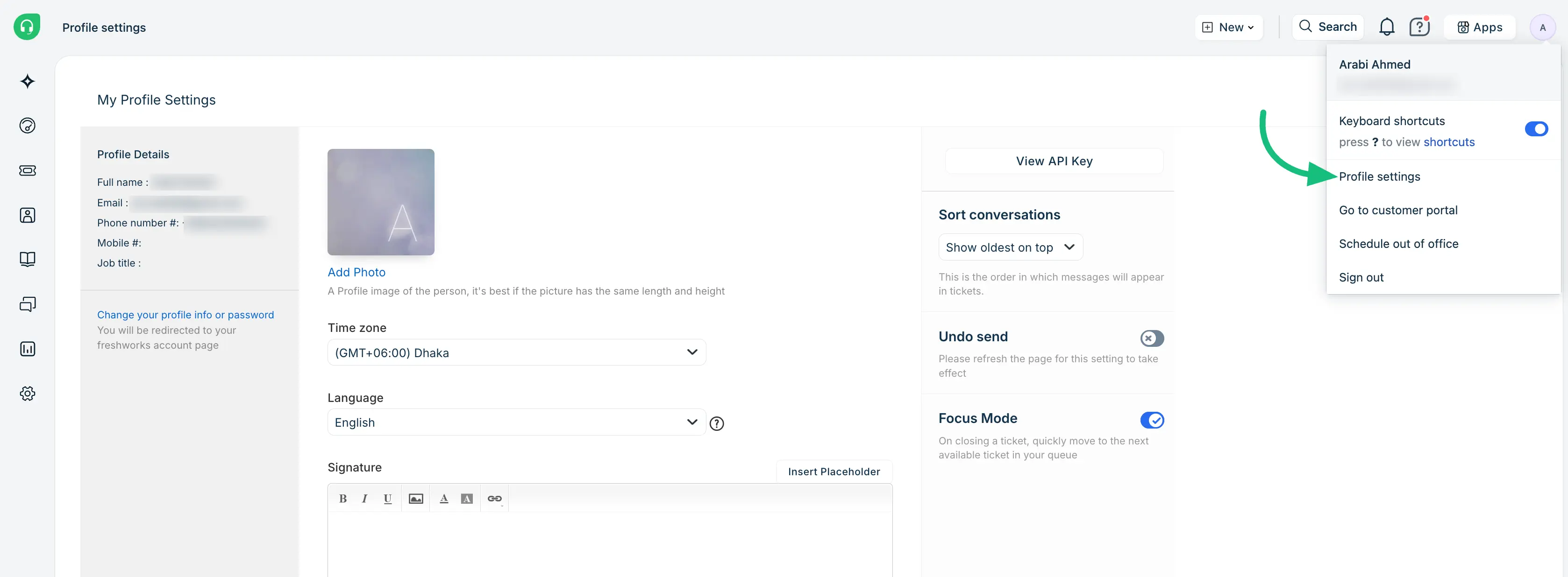
Go to the Profile Icon from the right-hand corner of the Dashboard and click on the Profile Settings.
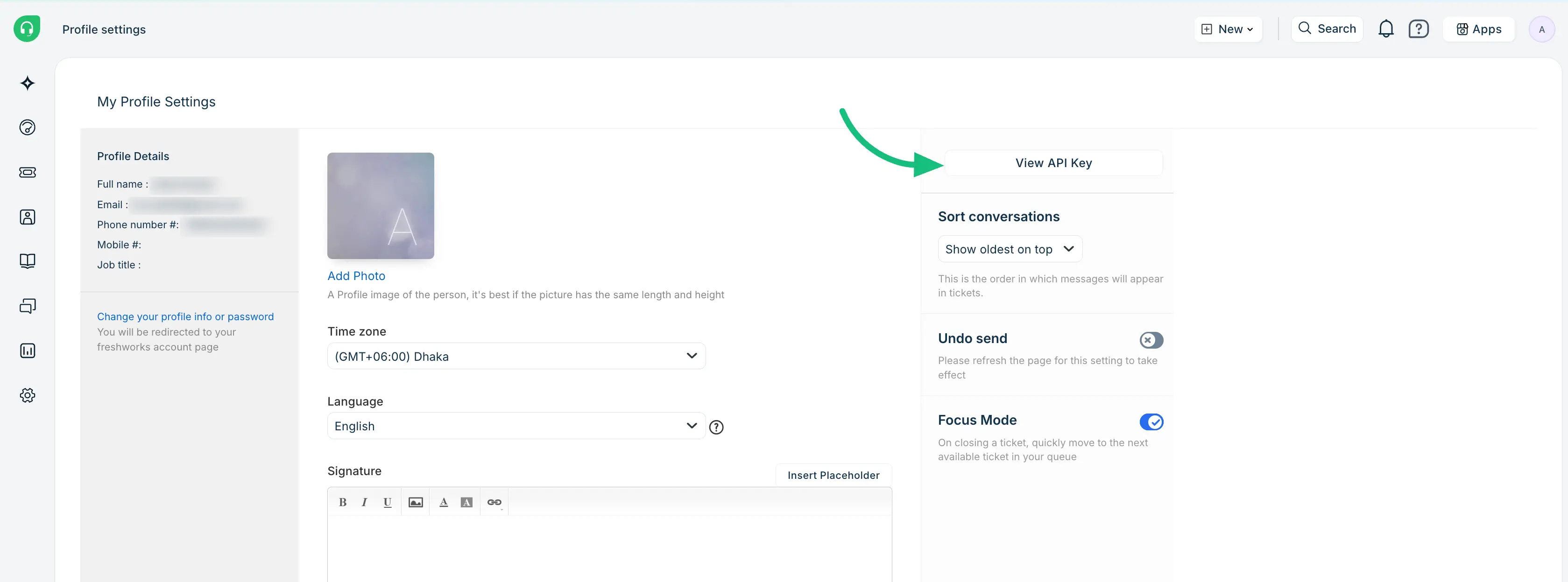
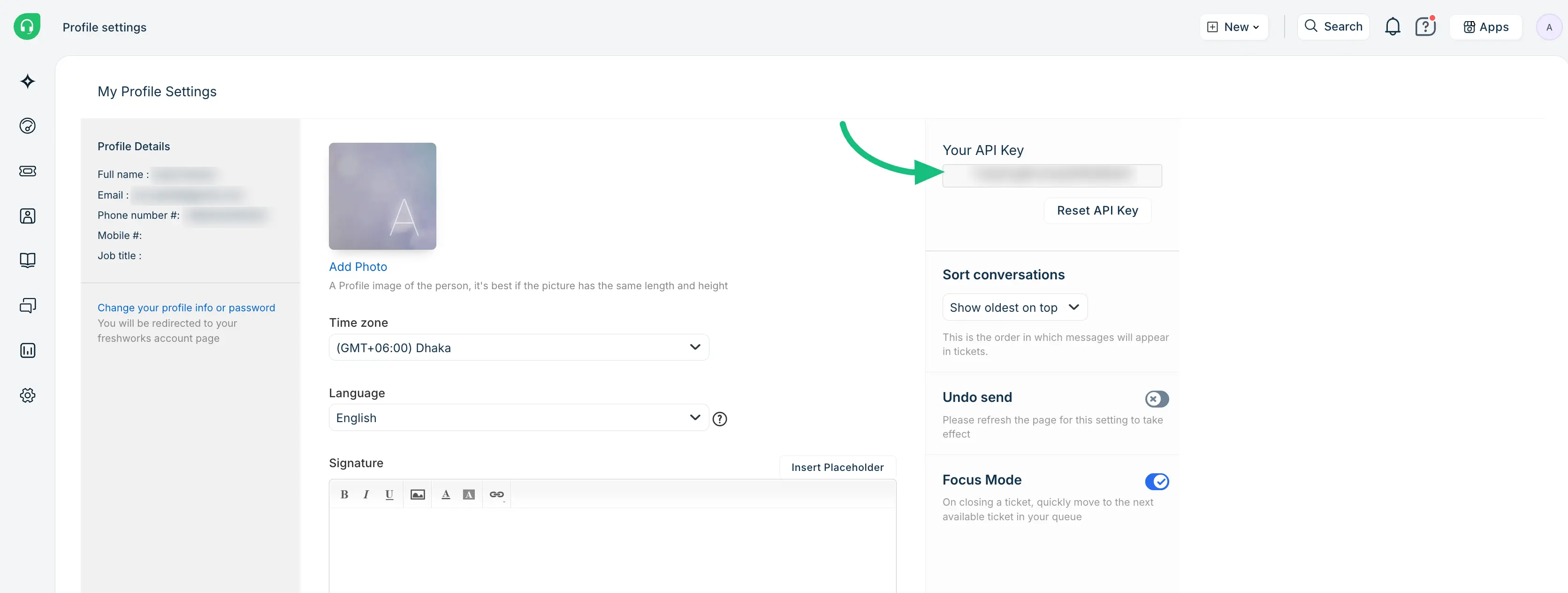
Click the View API Key and a robot confirmation will appear.
Then the API key will come. Simply, copy the API key from here.
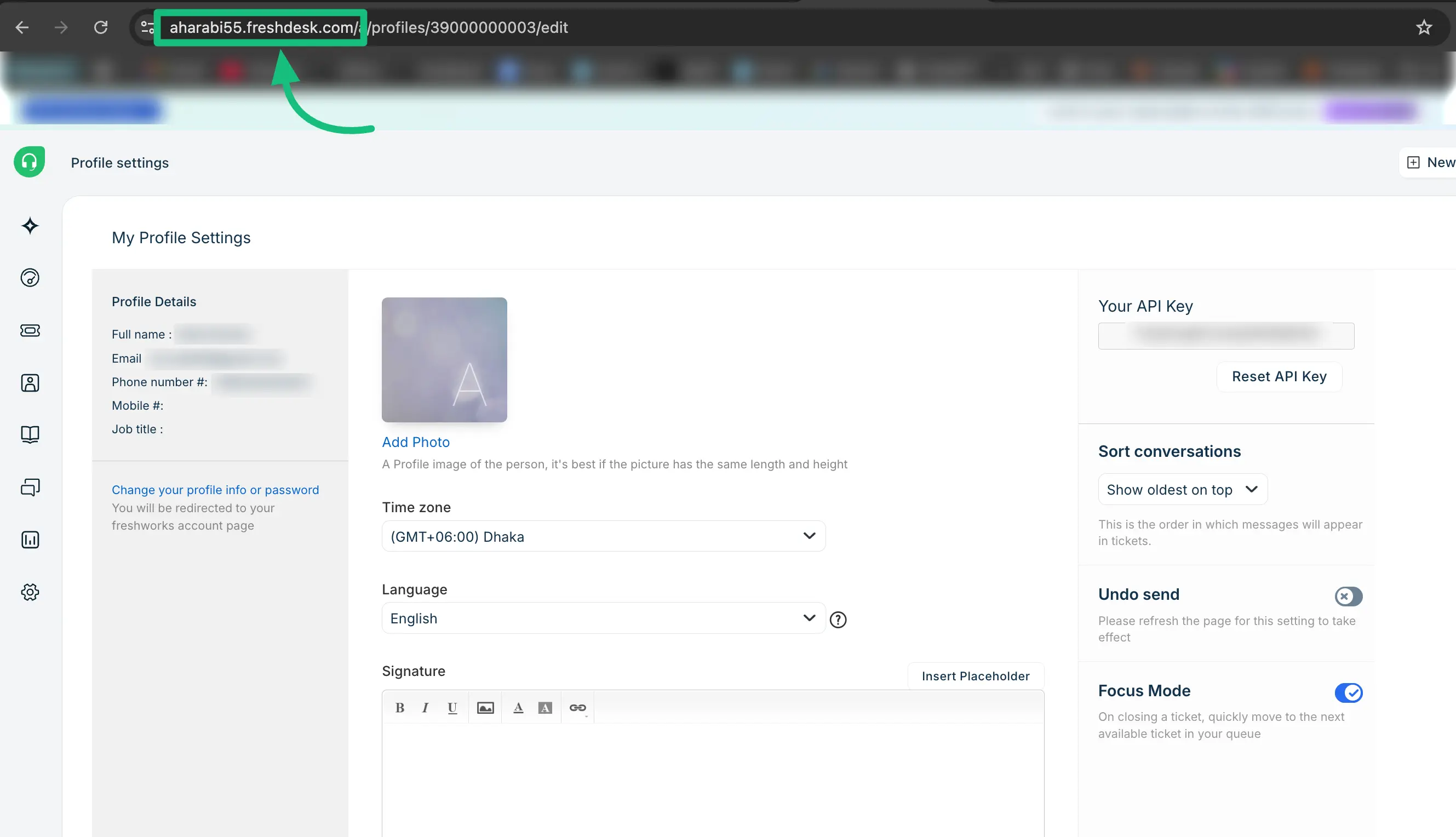
Also, copy the Freshdesk’s Domain URL from the URL section.
Authorize and Import
Return to the Freshdesk popup page from the Fluent Support Dashboard. Paste the Domain URL and API Key copied from your Freshdesk account into the desired field, and click the Import Tickets button.
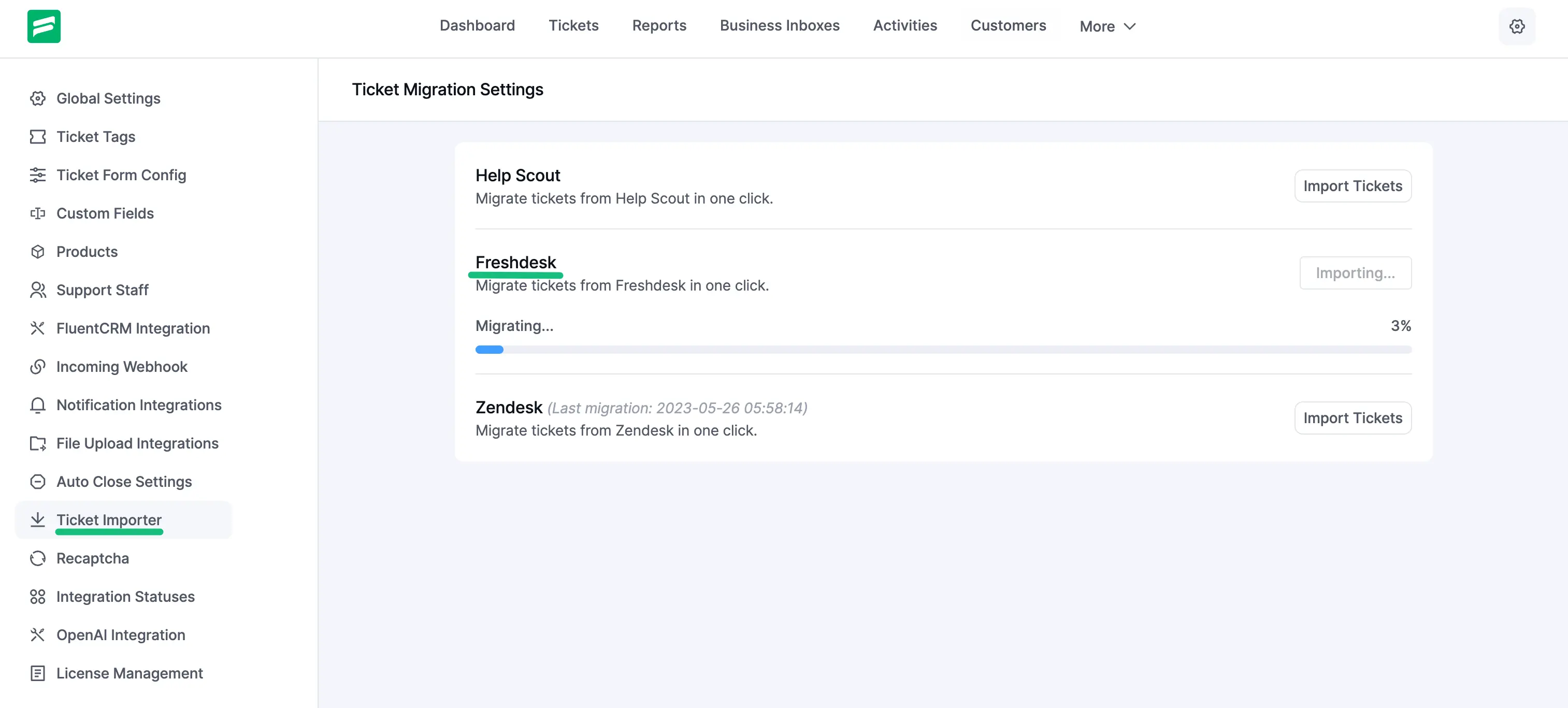
Congratulations, you are now ready to proceed! The importation of tickets will begin, and a notification will be sent once all your tickets have been successfully imported.
Here, you can see all the Tickets are Imported and the migration date & time are displayed as well.
This is how you can migrate your all tickets from Freshdesk to Fluent Support!