Appearance
Overall Activities
The “Activities” is another awesome feature of Fluent Support that lets you keep track of the overall ticket activities of your Support Agents. This article will give you a detailed overview of the dashboard in the Activities feature.
An Overview of Activities
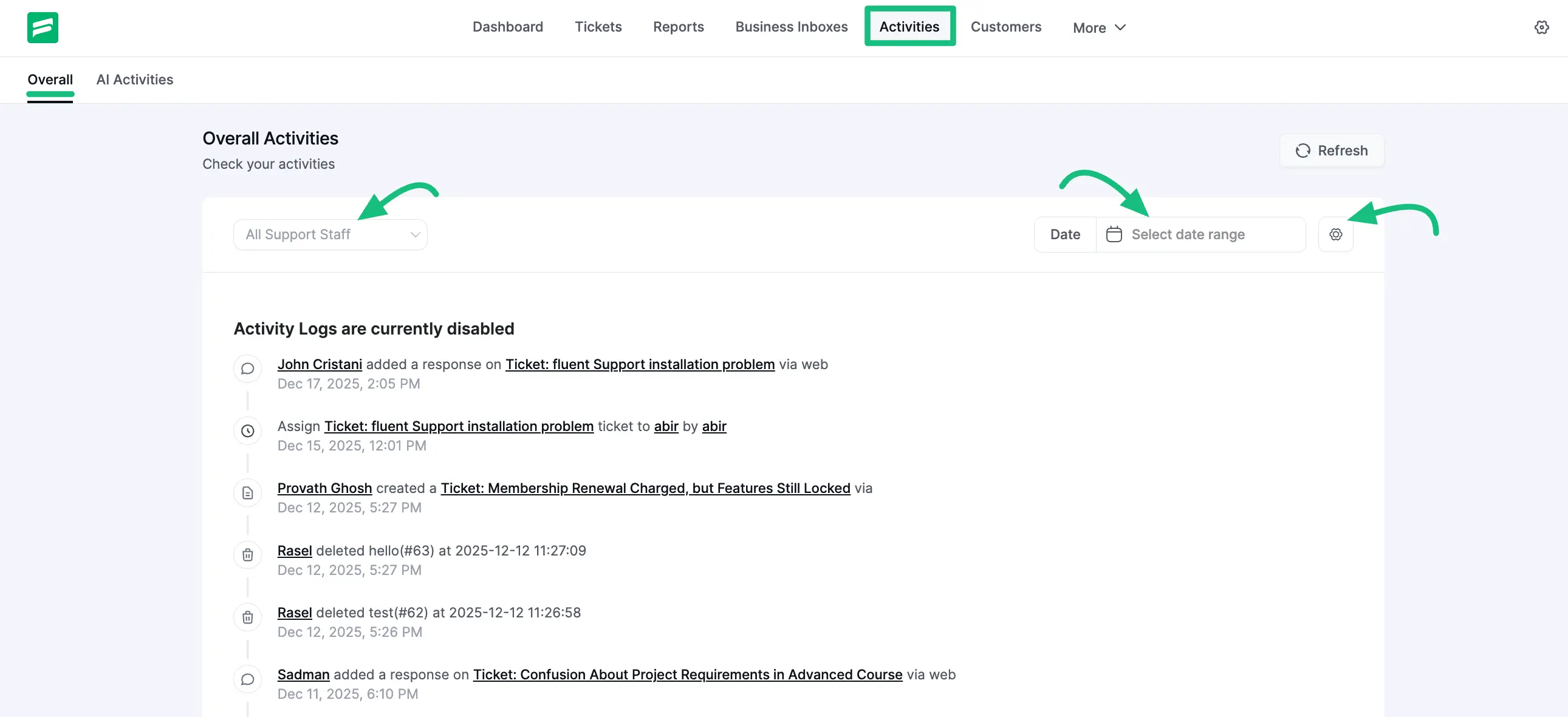
You will find the Activities option in the top navigation menu of your dashboard. Clicking this opens the activity log, which is divided into two tabs: Overall and AI Activities.
Overall Activities
The Overall tab shows a timeline of actions in your support portal, such as who created, replied to, deleted, or closed a ticket, in the order they happened.
- Filter by Agent: You can use the All Support Staff dropdown menu to view ticket statistics for a specific agent.
- Filter by Date: Use the Date filter to view activities within a specific time range.
- Refresh: A Refresh button is located in the top right corner to update the activity feed instantly.
Also, whenever an agent assigns a ticket, it will be displayed in the overall activities.
Activity Log Settings
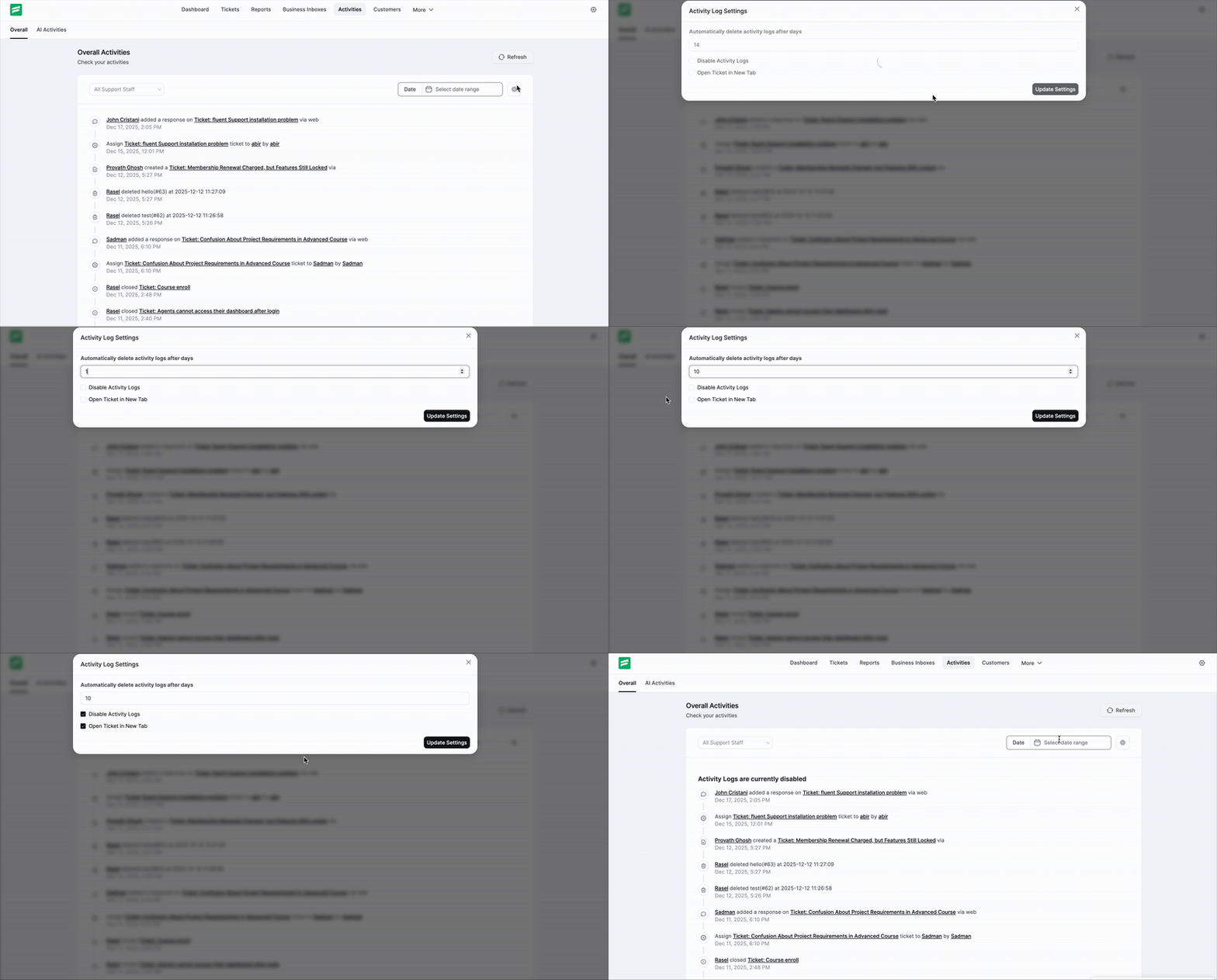
You will find a Settings (Gear Icon) located next to the Date filter on the tabs. This allows you to configure how logs are handled.
In the Activity Log Settings, you have the following options:
- Automatically delete activity logs after days: Enter a number (e.g., 14) to set how long logs should be kept before being automatically deleted.
- Disable Activity Logs: Check this box if you do not want to track support agent activities at all.
- Open Ticket in New Tab: Enable this option if you want ticket links within the activity log to open in a new browser tab.
After making any changes, ensure you click on the Update Settings button. Otherwise, the changes won’t appear.
AI Activities
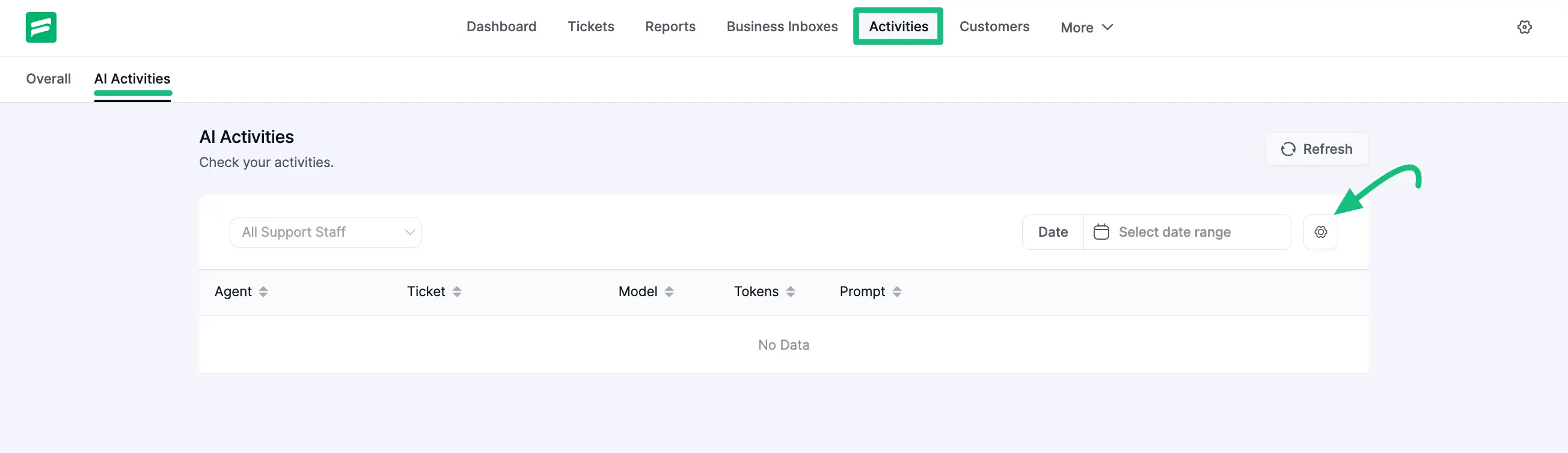
If you use AI features in Fluent Support, you can switch to the AI Activities tab to monitor usage. This section provides a detailed table with the following columns:
- Agent: The staff member who used the AI.
- Ticket: The specific ticket involved.
- Model: The AI model used for the task.
- Tokens: The number of tokens consumed.
- Prompt: The specific prompt used.
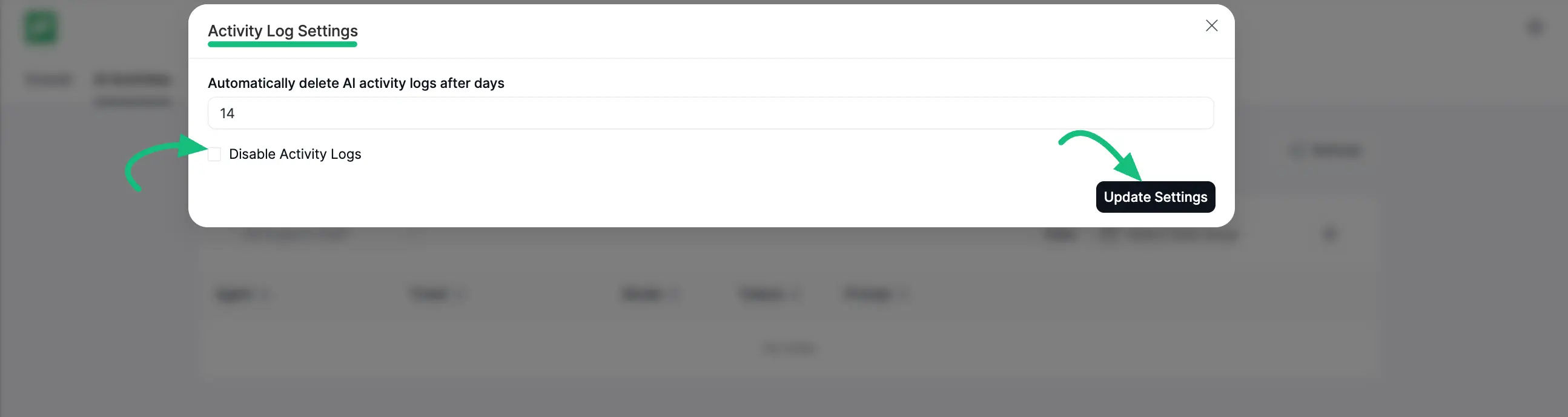
AI Log Settings
Similarly, you can configure settings specific to AI logs:
- Automatically delete AI activity logs after days: Set a specific duration for retaining AI-related logs.
After making any changes, ensure you click on the Update Settings button to save your preferences.
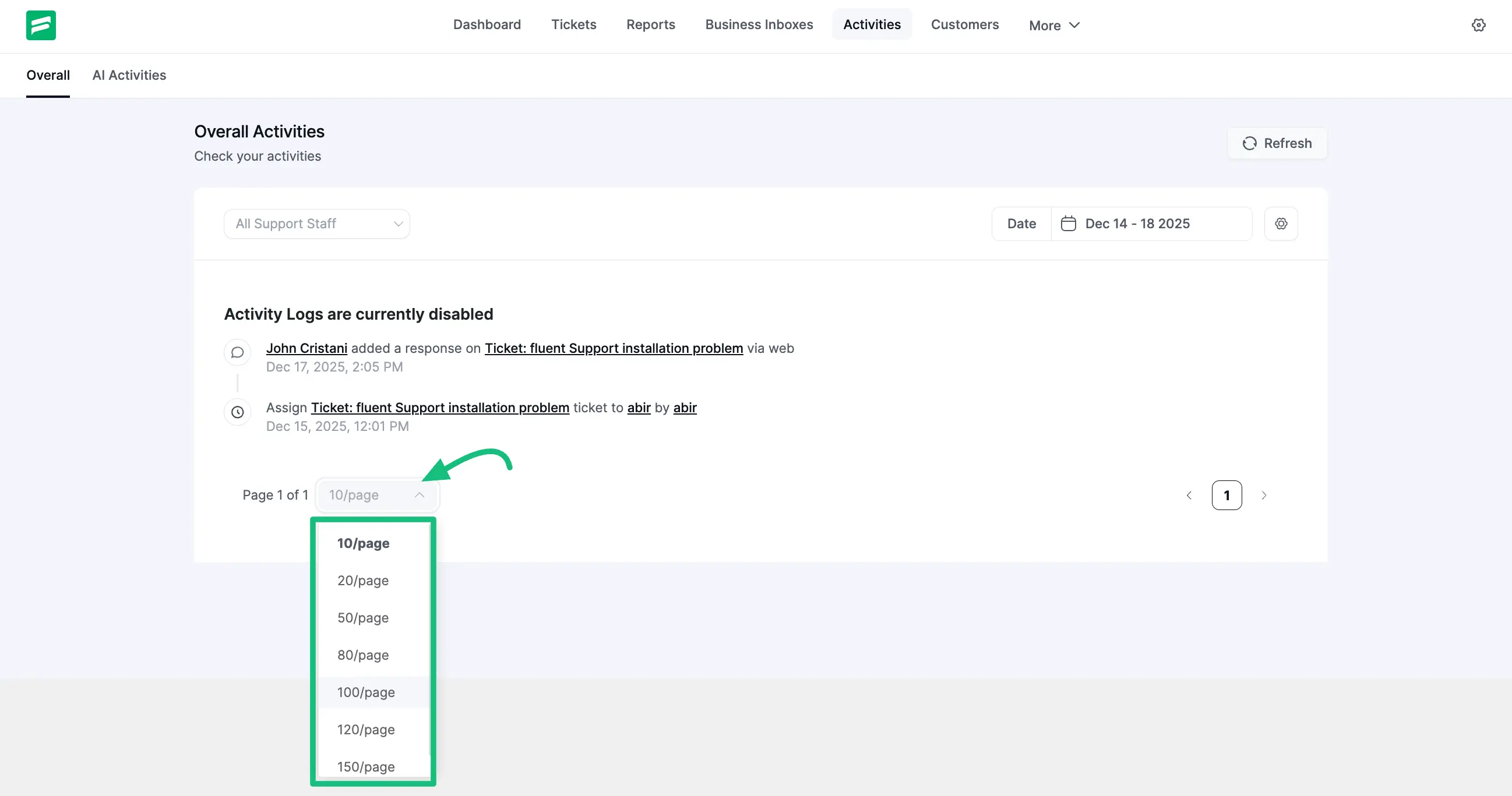
Pagination
In the Activities section, you will find another amazing feature for pagination, where you can select how many ticket activities you want to display per page. Right now you can show from 10 to 150 tickets activities in one page.