Appearance
Ticket Form Customization
This article will guide you through the process required to customize the default Ticket Submission Form of Fluent Support (e.g., hiding or changing some text or field within the default form). Follow the instructions accordingly to know the whole process.
Ticket Form Configuration
Go to Settings → Global Settings from your Fluent Support Dashboard. Click on Ticket Form Config from the left sidebar.
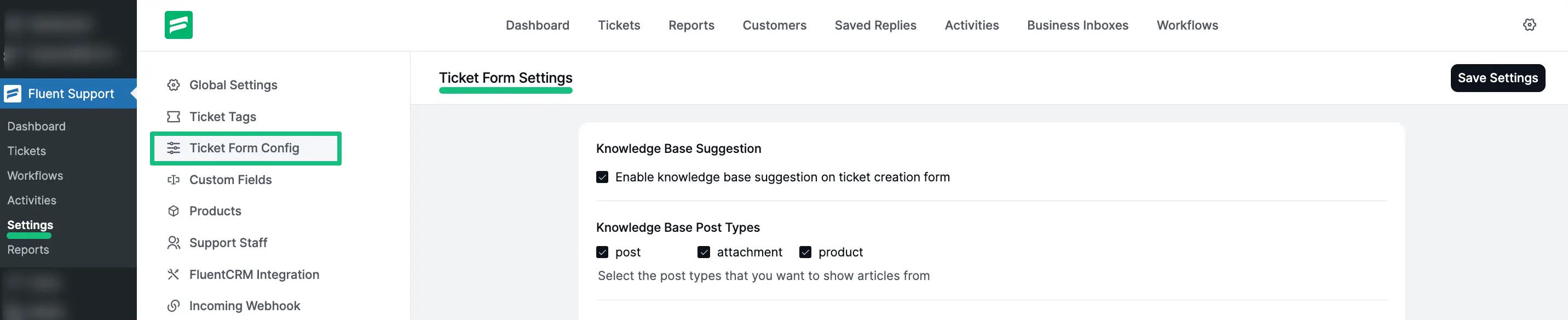
Here are all of the Settings of the Ticket Form which you can customize anytime.
TIP
Always press Save Settings after doing any customization in your Ticket Form Settings to save it, otherwise, the changes will not appear in your Ticket Form.
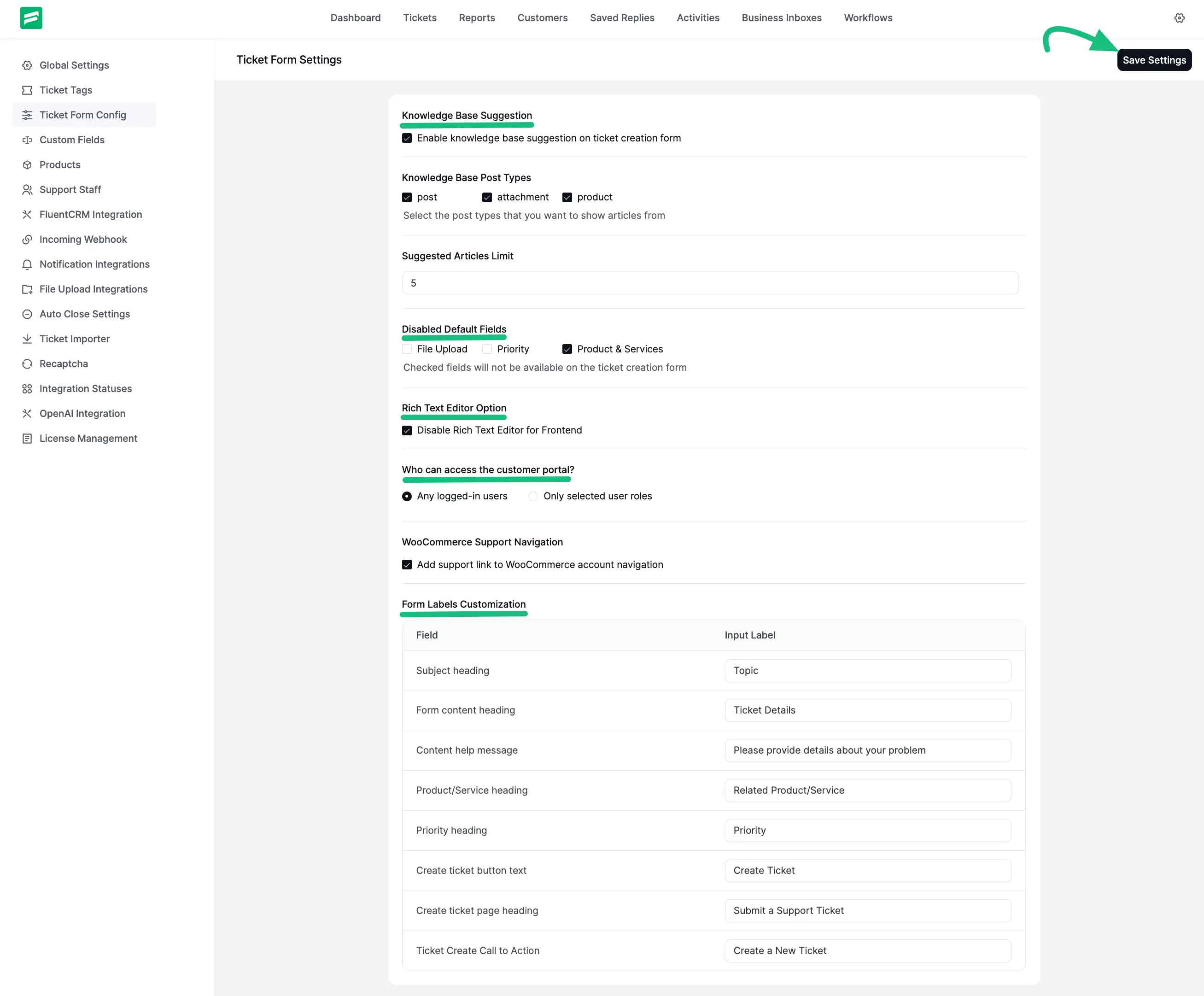
Ticket Form Settings
You will find different settings options in Ticket Form Settings to customize your Ticket Form. These are —
- Knowledge base suggestion on ticket creation form
- Knowledge base post type
- Suggested Article Limit
- Disabled Default Fields
- Disable Rich Text Editor for Frontend
- Required fields for products and services
- Who can access customer portal?
- WooCommerce Support Navigation
- Form Labels Customization
To learn how to configure these settings, follow the detailed steps below.
Knowledge base suggestion
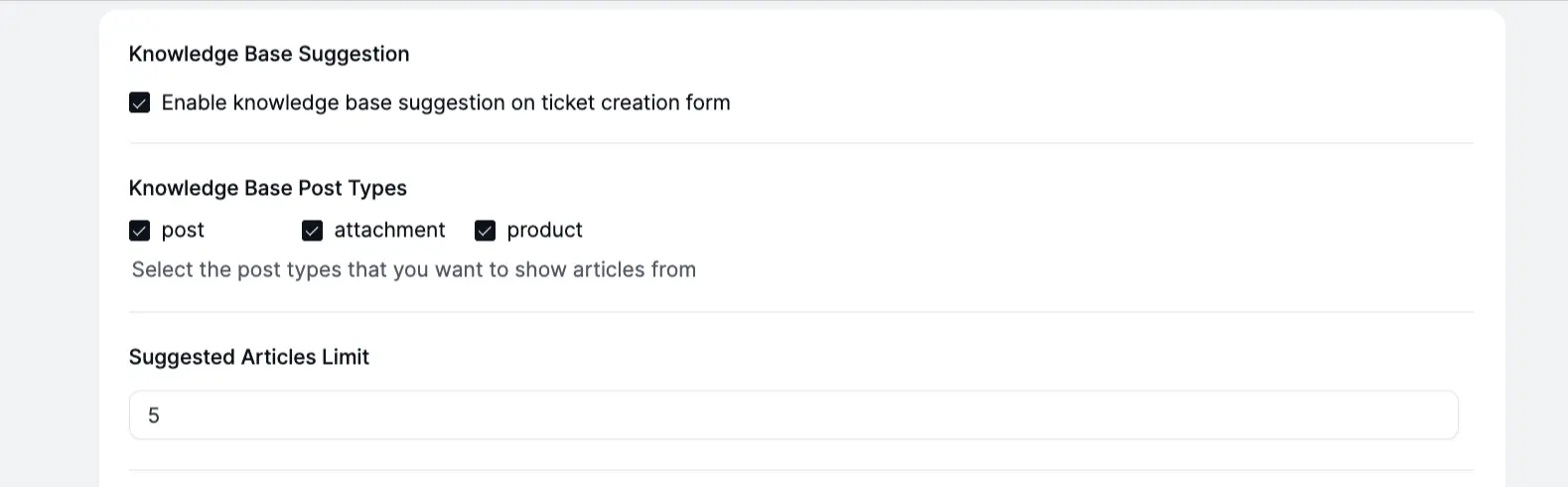
Enable this setting so that your customers receive instant solution suggestions from related posts, docs, or products on your website when they type a subject.
- Enable knowledge base suggestion: Check this box to activate the feature.
- Knowledge Base Post Types: Select the source of your articles (e.g., post, attachment, product). You can choose various options like Post , Attachment , Product , Docs , etc. based on your website content as suggestions.
- Suggested Articles Limit: Define how many suggestions should appear (e.g., 5).
Knowledge base post type
This setting allows you to specify exactly which types of content on your WordPress site should be used to provide suggestions to the customer.
- Selection: You can choose from standard WordPress Posts, Pages, or Attachments.
- Custom Post Types: If you use third-party plugins, you can also select Products (WooCommerce), Docs (BetterDocs/Fluent Support Docs), or Courses (FluentCommunity/LearnDash).
- Versatility: You can select multiple post types simultaneously. For example, selecting both "Docs" and "Products" ensures that the system searches both your documentation and your store items to find a relevant match for the customer's subject line.
Suggested Article Limit
This option controls the maximum number of suggestions displayed to the customer as they type their ticket subject.
- Configuration: Enter a numerical value (e.g., 3, 5, or 10) to limit the list of search results.
- User Experience: Setting a reasonable limit (such as 5) helps provide the most relevant solutions without overwhelming the customer with too many choices, ensuring a clean and helpful interface.
Disabled Default Fields
This setting allows you to hide specific default fields from the ticket creation form if they are not relevant to your support flow. You can disable:
- File Upload: Remove the attachment option.
- Priority: Prevent users from setting their own priority level.
- Product & Services: Hide the product selection dropdown.
Product & Service Field Requirement
- Mark product and service fields as required: If you enable this, customers strictly must select a product or service before they can submit a ticket.

Rich Text Editor Option
- Disable Rich Text Editor for Frontend: Check this box if you want to provide a simple plain-text area for the ticket description, removing formatting options (bold, italics, links, etc.) for the user.

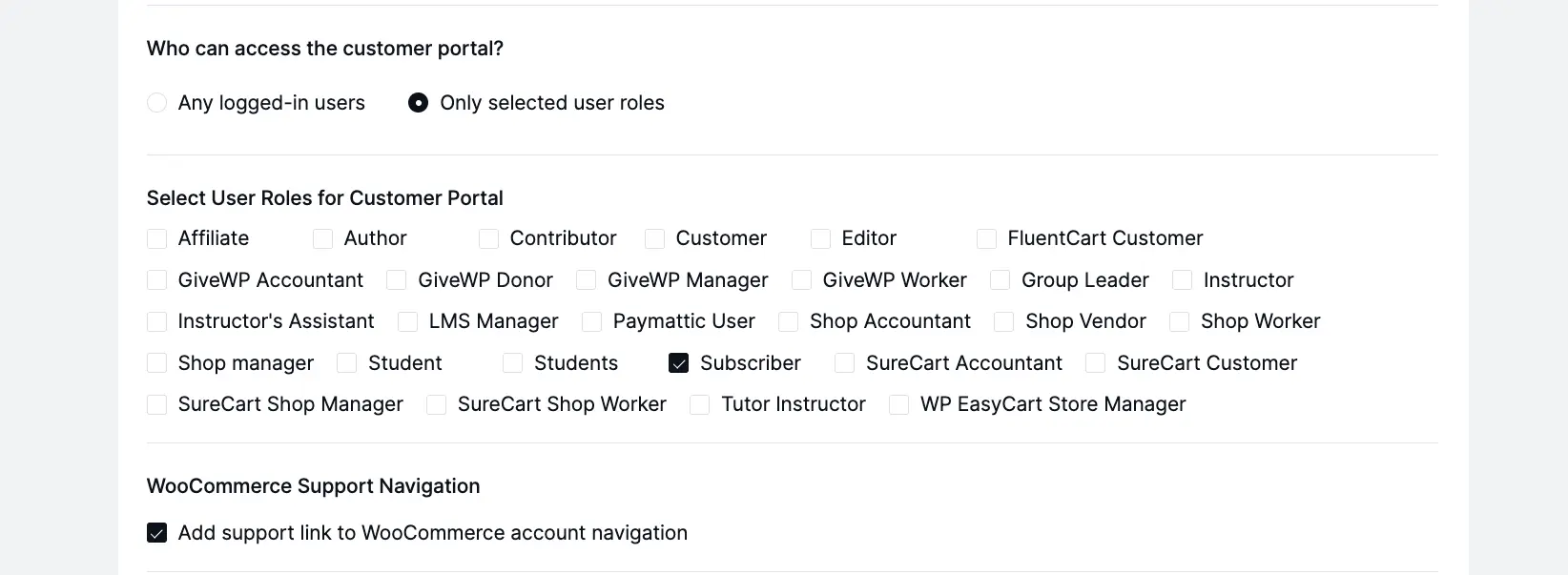
Who can access customer portal?
This setting gives you the option to select who can get access to your customer support portal. It provides two basic options and these are —
- Any logged in users: If you enable this option, any user can get access by logging into the customer portal.
- Only selected user roles: Here, you can specify which users can access your customer portal by selecting their roles (e.g., if you select Author, Contributor, and Customer roles, only they will have access).
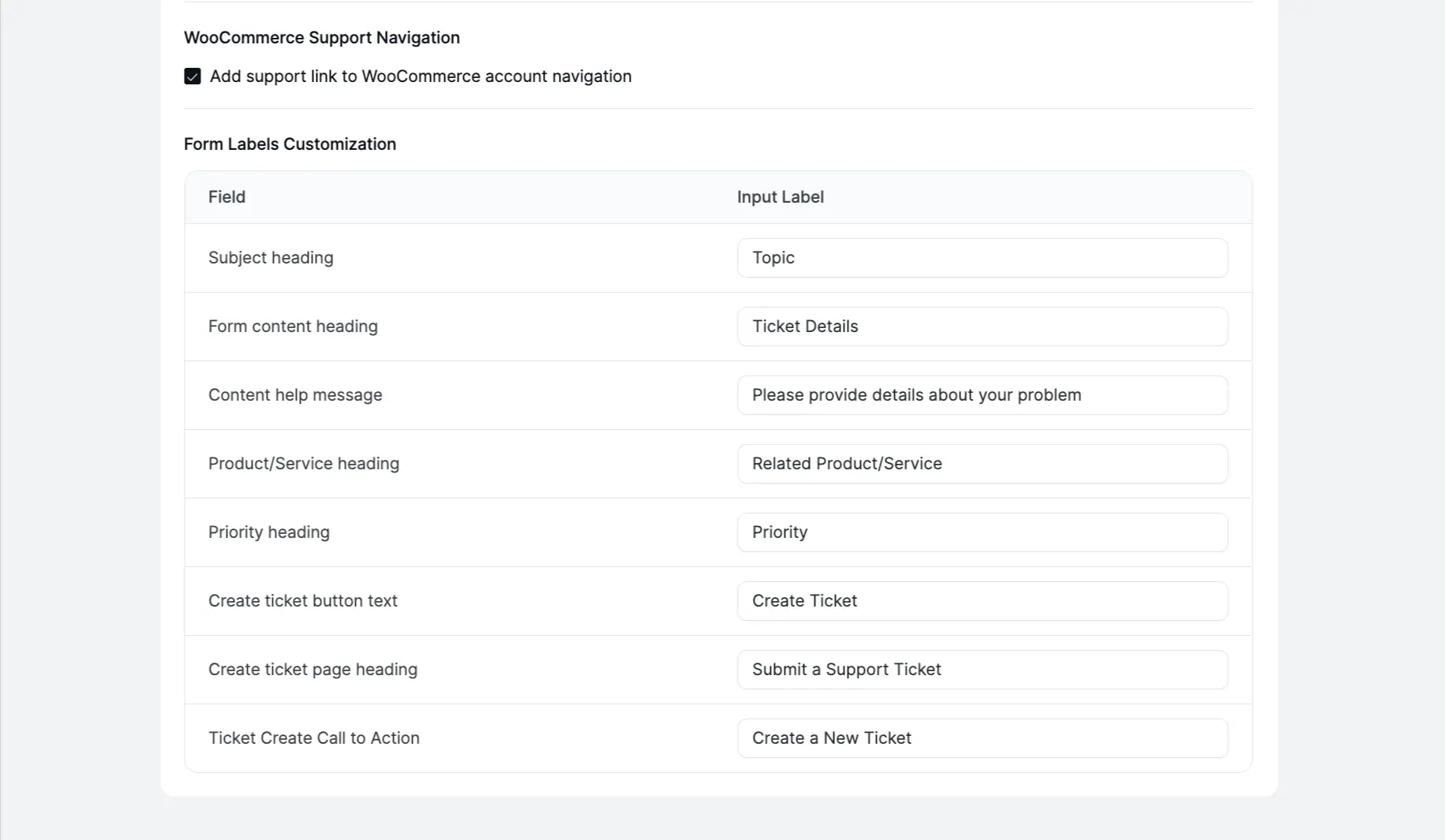
WooCommerce Support Navigation
If you are using WooCommerce, this setting integrates Fluent Support directly into your store's account area.
- Add support link to WooCommerce account navigation: Enable this to automatically add a "Support" tab to the WooCommerce "My Account" page menu, allowing customers to open tickets directly from their account dashboard.
NOTE
If you have already integrated Woocommerce with your Fluent Support , you will get the setting shown in below. Otherwise, this setting option will not appear in your Ticket Form Settings.
Form Labels Customization
This section allows you to rename the labels of your form fields to match your brand's voice. You can customize the text for:
- Subject heading: (Default: Topic)
- Form content heading: (Default: Ticket Details)
- Content help message: (Default: Please provide details about your problem)
- Product/Service heading: (Default: Related Product/Service)
- Priority heading: (Default: Priority)
- Create ticket button text: (Default: Create Ticket)
- Create ticket page heading: (Default: Submit a Support Ticket)
- Ticket Create Call to Action: (Default: Create a New Ticket)