

Appearance
Bulk Action in Tickets
Fluent Support allows you to perform various Bulk actions e.g., replying to multiple tickets at once, closing or deleting tickets in bulk. This article will guide you through the whole process of doing it.
Bulk Actions
To learn how you can perform various Bulk Actions in Fluent Support , follow the steps with the screenshots below —
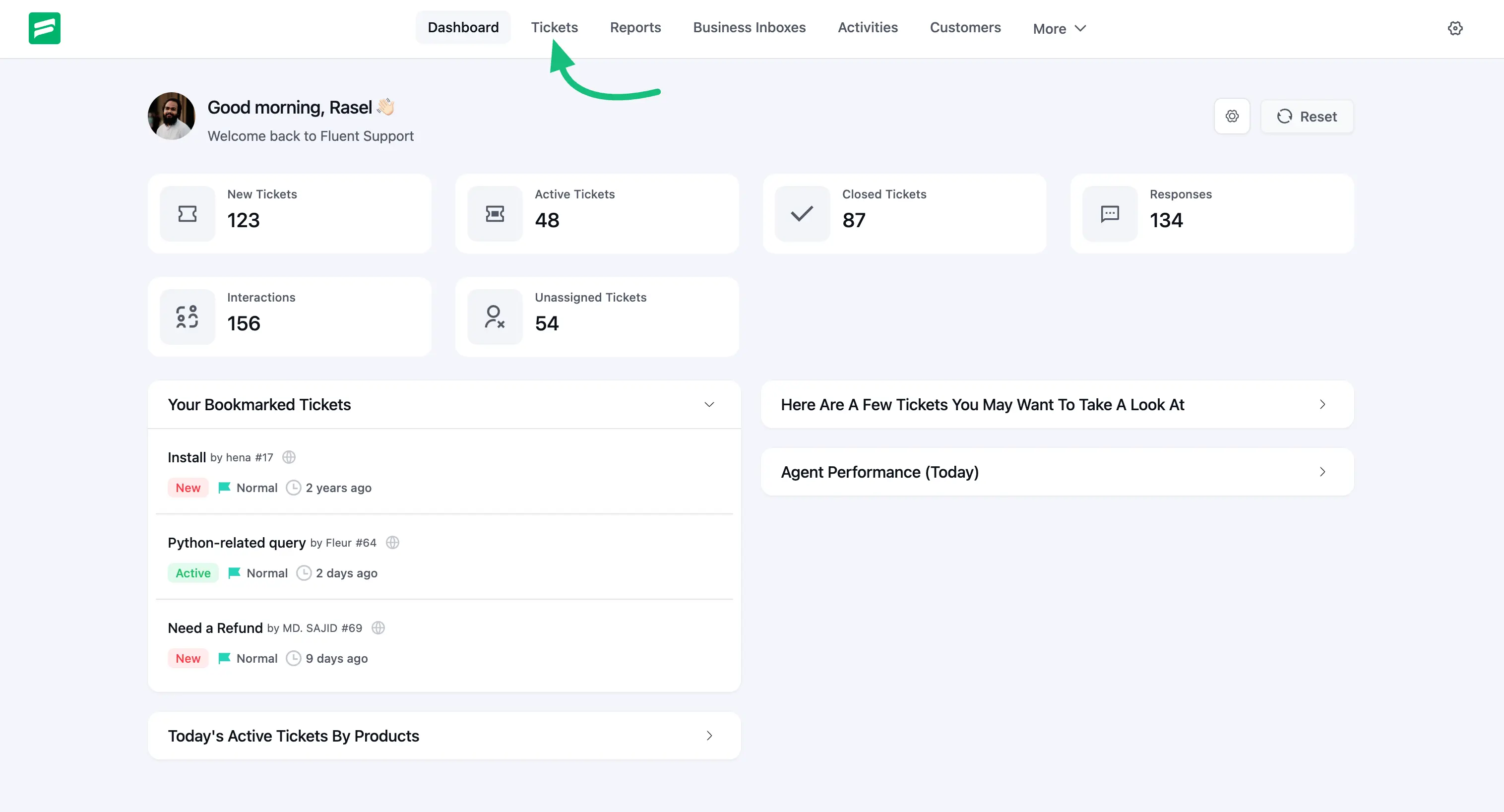
First, go to your Tickets underFluent Support Dashboard.
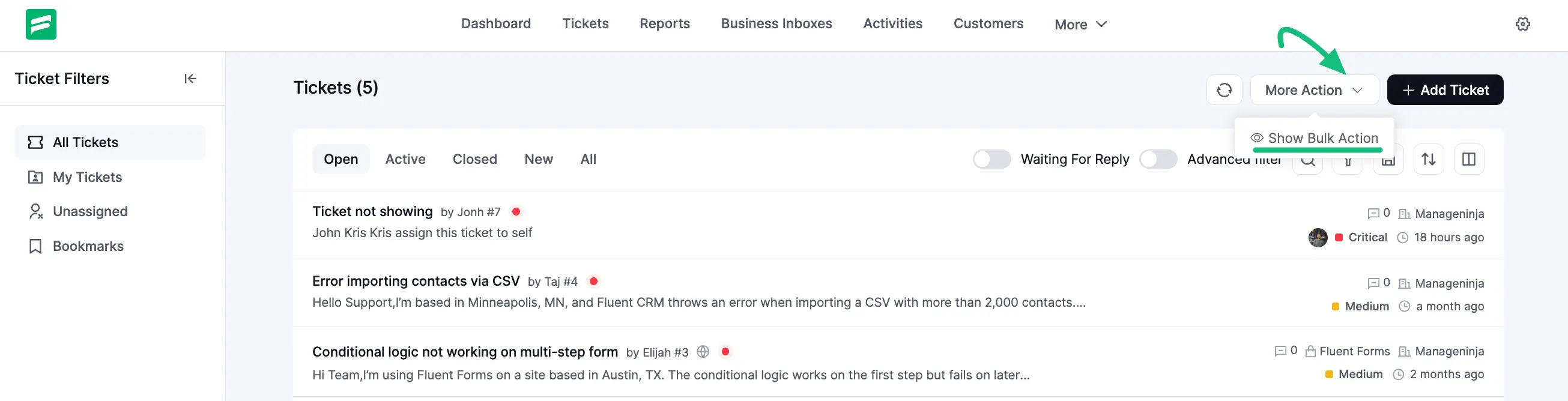
Now go to your desired ticket section from My Tickets, All Tickets , Unassigned , or Bookmarks. After that click on the More Action button now you will see Show Bulk Action select it to activate the Bulk Action feature.
To access the bulk action, check the entries on the left and a popup will appear with icons.
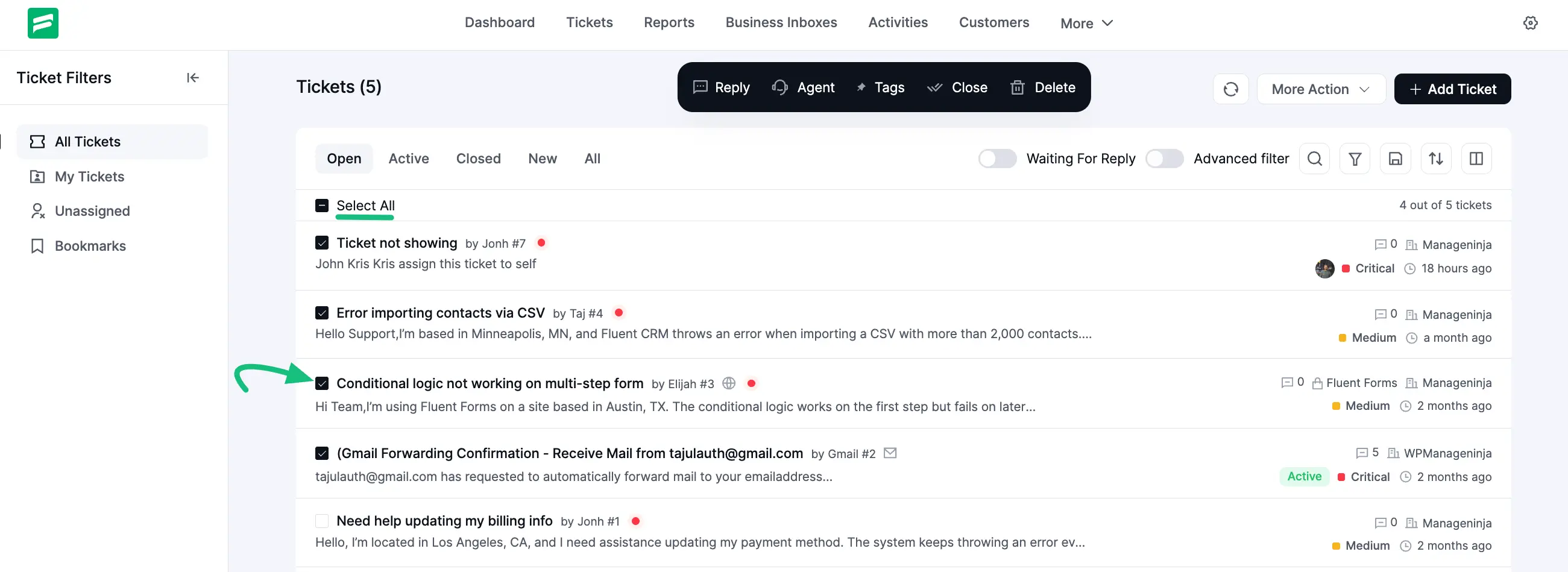
Each Icon performs a certain action in bulk. With the bulk actions what you can perform is explained below –
- a) Reply: You can add Replies to all the selected tickets in bulk at once.
- b) Agent: You can Assign Agents to all the selected tickets in bulk at once.
- c) Workflow: You can apply workflow on the selected tickets from here.
- d) Tags: You can apply Tags to all the selected tickets in bulk at once.
- e) Close: Using this you Close all the selected tickets in bulk at once.
- f) Delete: Using this you Delete all the selected tickets in bulk at once.
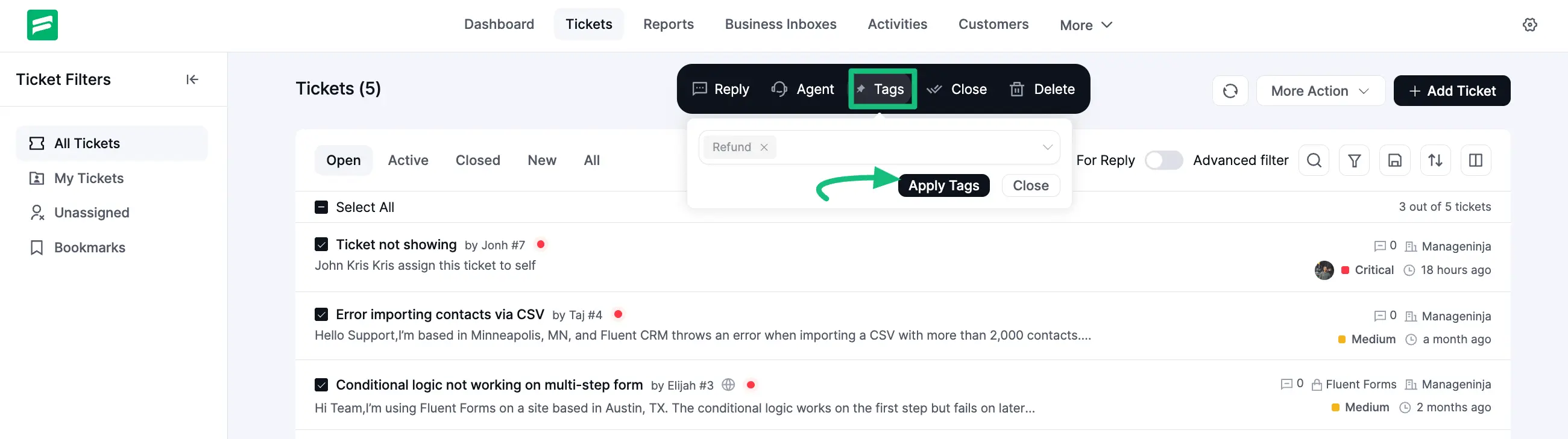
Also, you can select all the tickets in bulk at once or individually based on your needs.