

Appearance
Internal Notes
Internal Notes are private notes about users that only support agents can see. This feature promotes better team collaboration for faster ticket resolution (e.g., you can leave notes for colleagues to continue conversations if you’re stuck in the middle of a conversation at the end of your shift). This article explains the functionality of this feature in Fluent Support.
How to Add Internal Notes
First, go to Tickets under Fluent Support Dashboard & open your desired ticket and this will take you to the ticket entry page.
Now, click on the Notes button at the top and this will open a text editor where you can add the notes about your users for better ticket management.
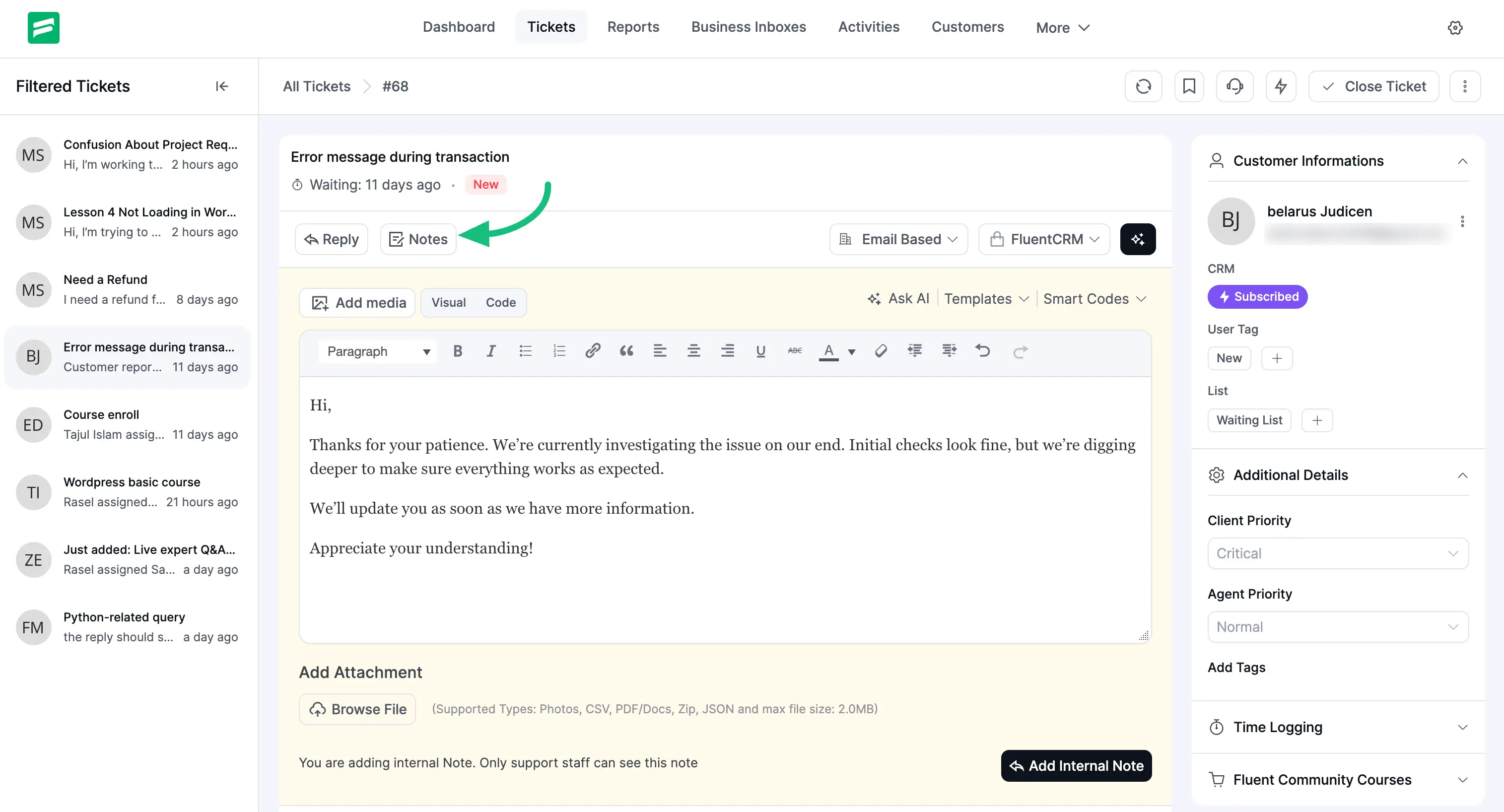
Here, you will find the Add Media option where you can insert any media file within a note.
Or, upload an external file using the Browse Files button.
You can ask AI for your internal note suggestions. Simply click on the AI button and AI will give you the internal note suggestion.
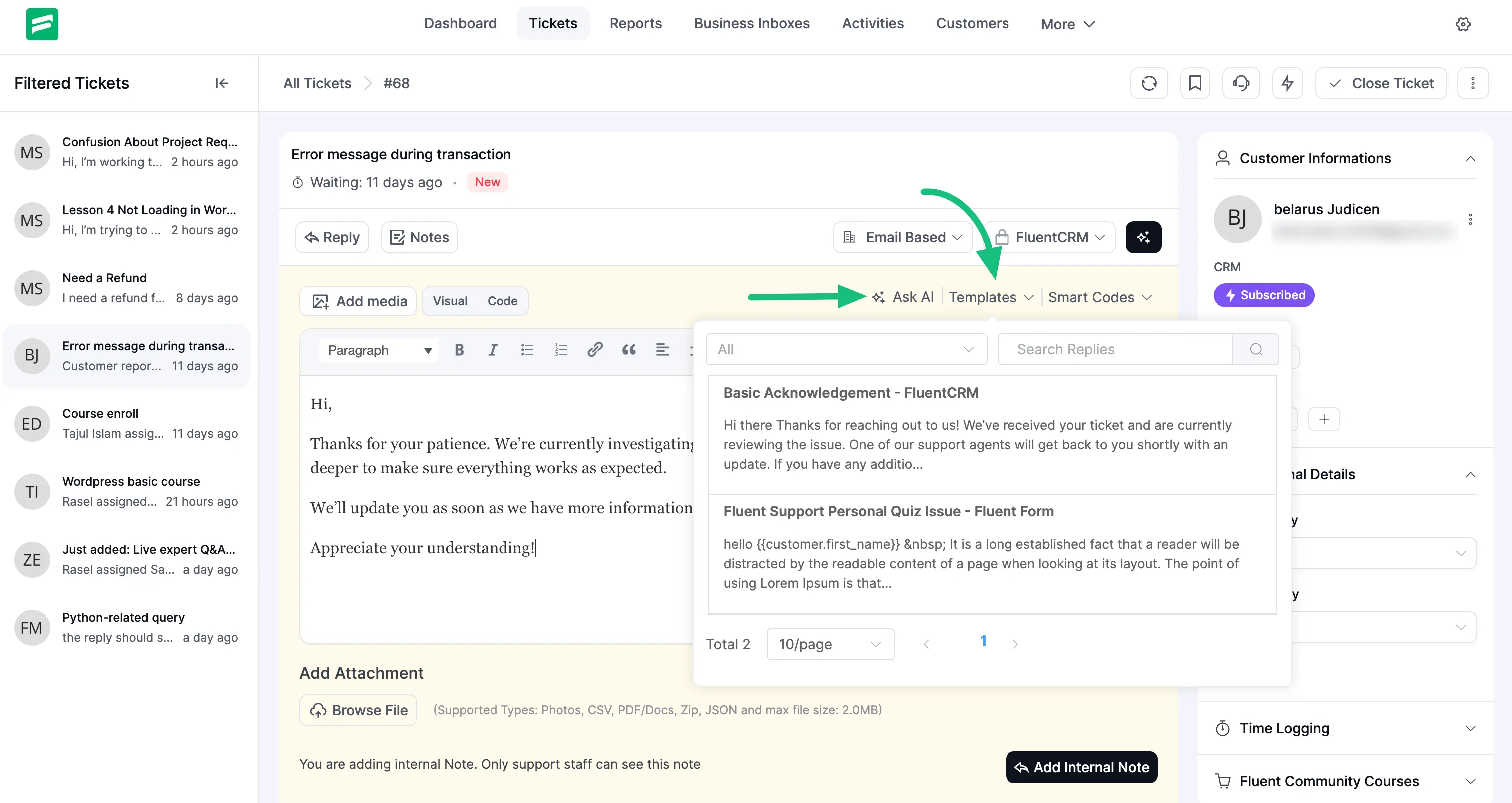
You can also use templated replies by clicking on the Templates button. It allows you to search for a saved reply using the search box. Use the dropdown at the top to filter the replies based on the products. To know more,click here.
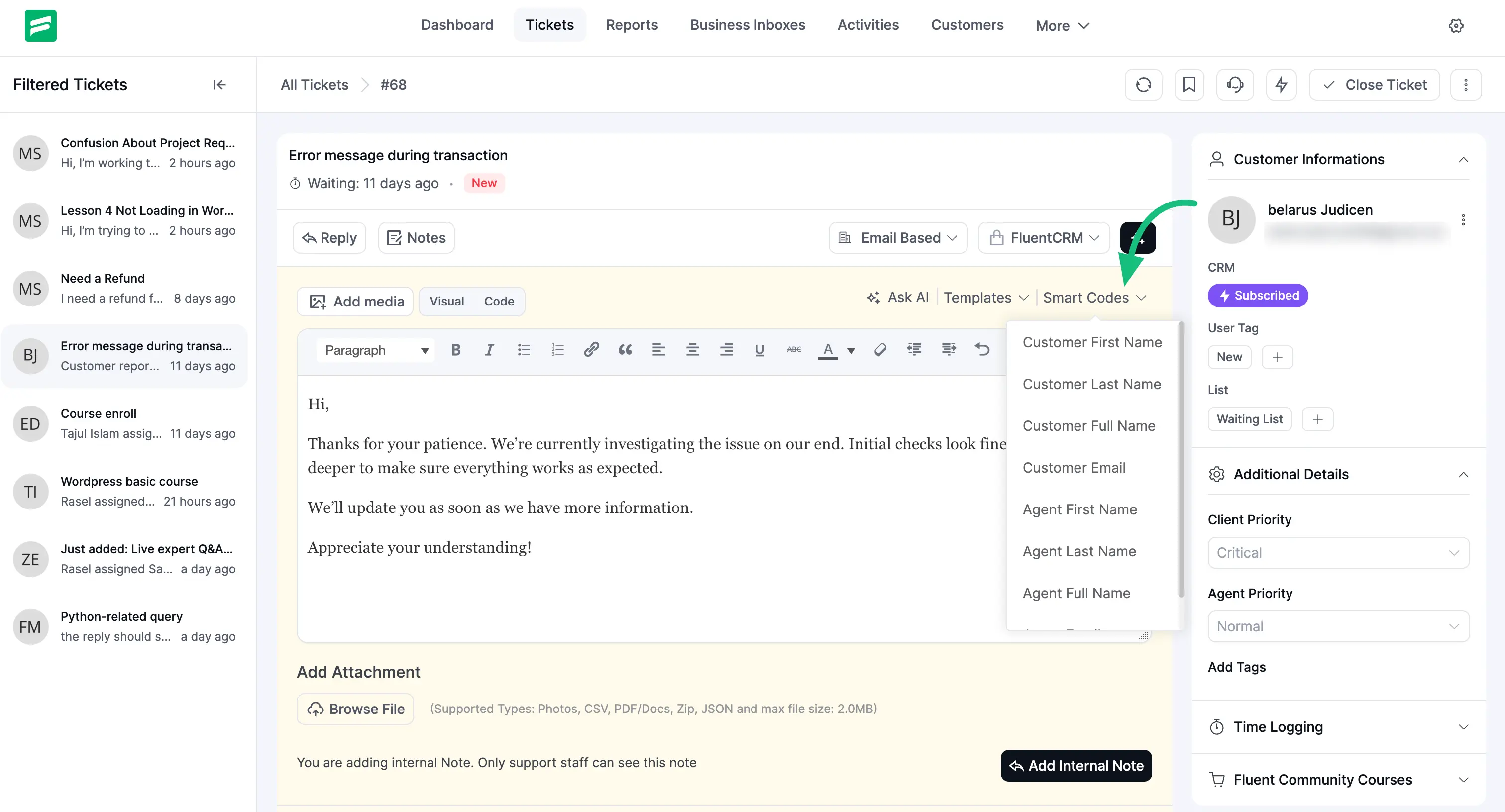
Another option you will see is Shortcodes, which you can use within the Notes. It will dynamically fetch various information like the Customer name, email, agent name, etc.
Finally, click on the Add Internal Note to save your note, and you’re all set!
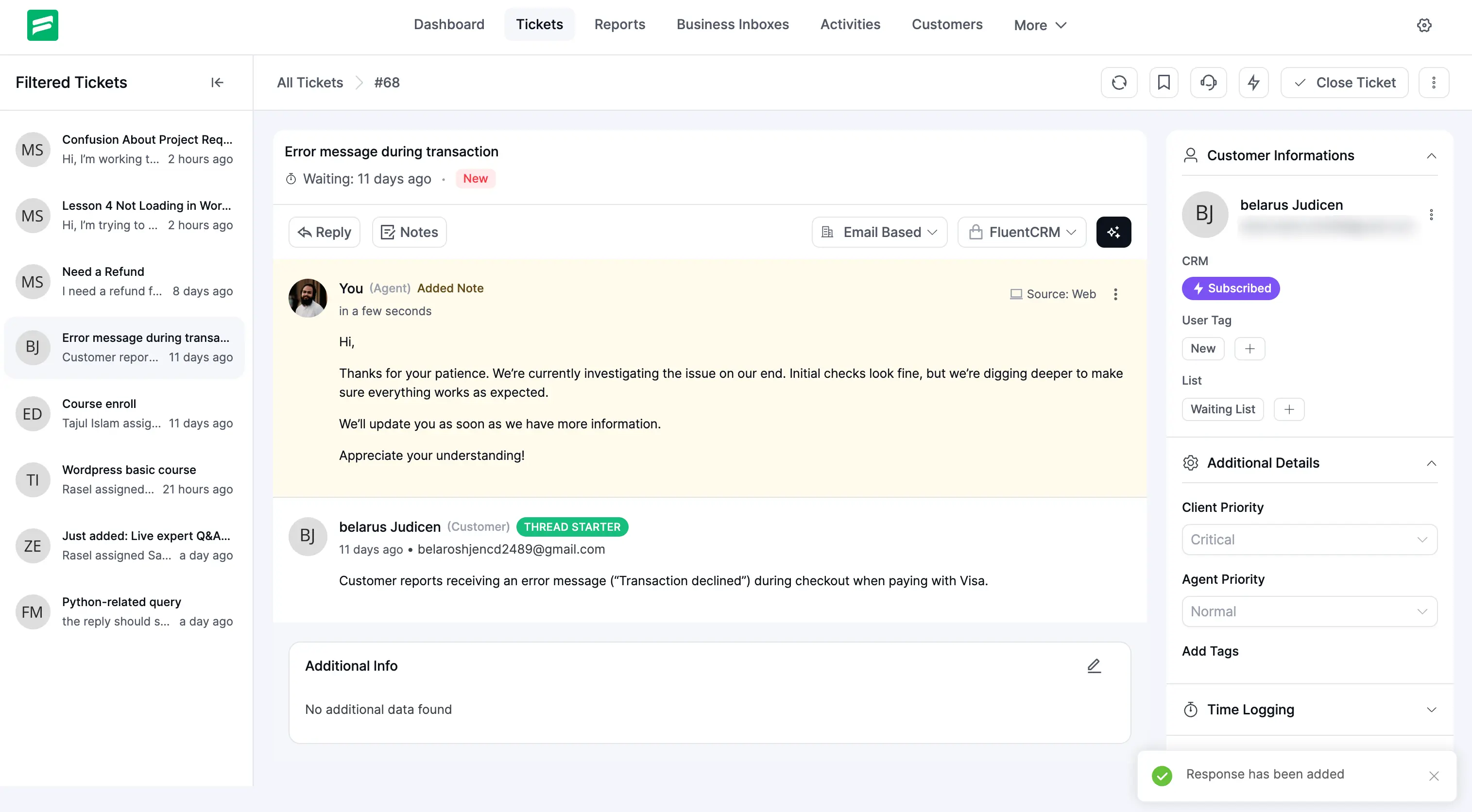
This way, you can create as many Internal Notes as you want to categorize or organize your tickets!