Appearance
Bookmark Tickets
Fluent Support allows the support agents to Bookmark their tickets to find them easily on the dashboard or to request another agent to look at a ticket. This article will guide you through the whole process of doing it.
Bookmarks
First, go to your Fluent Support and click on Tickets. Now go to your desired ticket section from My Tickets , All Tickets , Unassigned , or Bookmarks
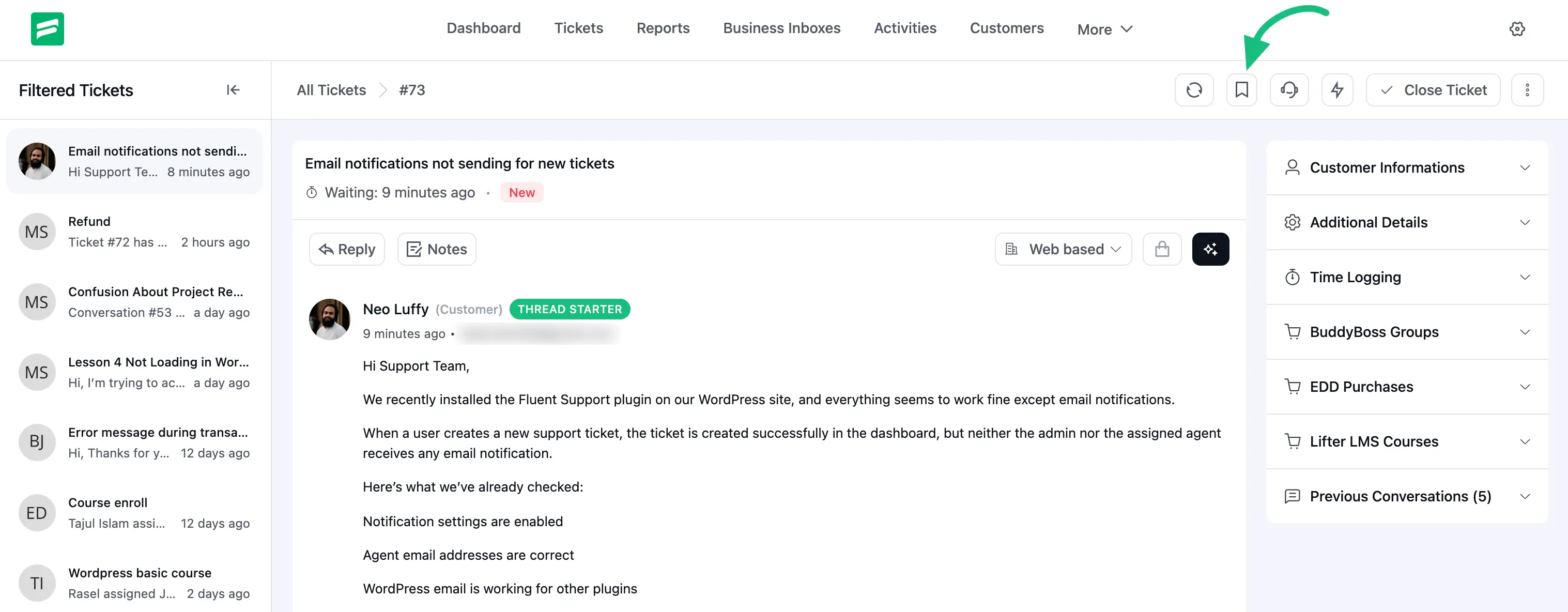
Open the specific ticket you want to bookmark and click on the Bookmark Icon button.
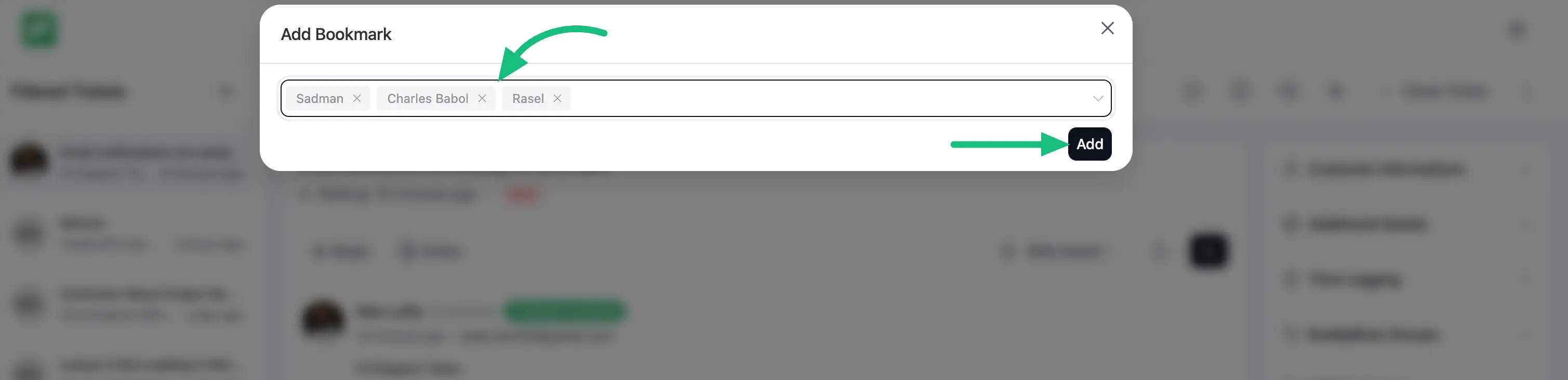
Now, select Add Bookmark and a popup page will appear on the top.
You can assign single or multiple support staff to the ticket using the dropdown list. After selecting the support staff, click the Add button and the ticket will be bookmarked & stored under the Bookmarks section on the left sidebar.
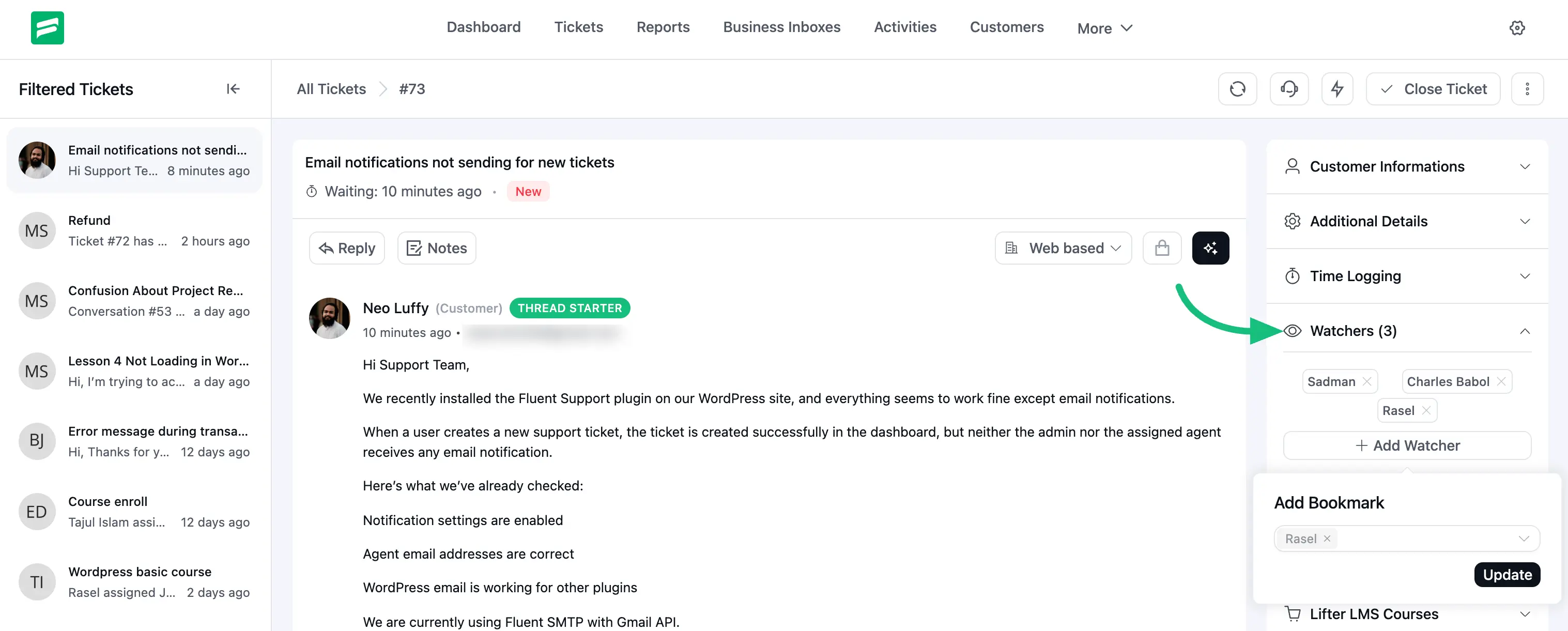
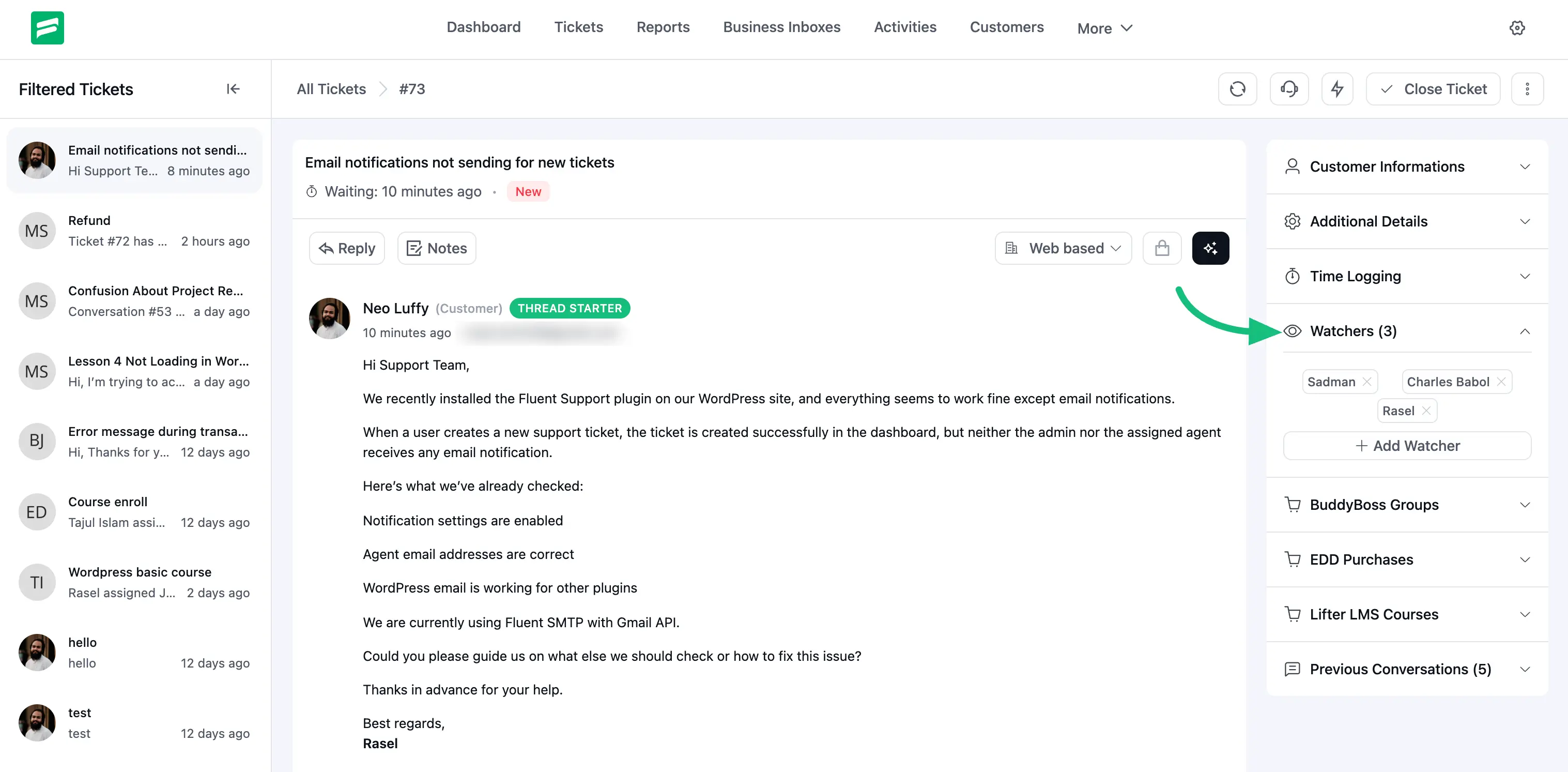
The support staff (agents) will also be bookmarked on the right side of that ticket and will shown under the watcher section.
You can add more support staff (agents) or remove by clicking on the + Add Watcher button.